
Key Takeaways
- 01Converting an estimate to an invoice saves time and eliminates manual data entry
- 02Professional estimates and invoices help convert prospects into paying customers
- 03InvoiceOwl allows you to convert approved estimates into invoices with a single click
- 04Both estimates and invoices should include company details, itemized costs, and tax information
- 05Using invoicing software streamlines the entire workflow from estimate to payment collection
Generating an accurate estimate is integral to every business. Estimates help customers in deciding whether they want to engage with your business or not. Therefore, estimates should be professional and precise. While generating an estimate, you should consider various factors, like work conditions, expenditure on materials, labor costs, availability of field technicians, direct work costs, and overhead expenses. An invoice also plays an equally important role in running a successful business. It helps you realize your payments with ease. A professional invoice can lay a strong foundation for small businesses. If your customer accepts your estimate, converting it into an invoice is smart and efficient. Even though you can generate professional estimates and invoices within minutes using invoicing software like InvoiceOwl, you can save even more time and energy by simply converting an estimate into an invoice. Here is an all-encompassing guide that will be helpful for you to convert your approved estimate into an invoice so that you can save time.
Table of Content
Steps to Convert Estimate to an Invoice
For converting an estimate into an invoice, you must first prepare an estimate. Here are the following ways in which you can create an estimate:
Step 1: Install estimating and invoicing software like InvoiceOwl
Generating a professional estimate is pertinent to convert a potential client into a real customer. However, generating an accurate estimate can take up a lot of time and energy.
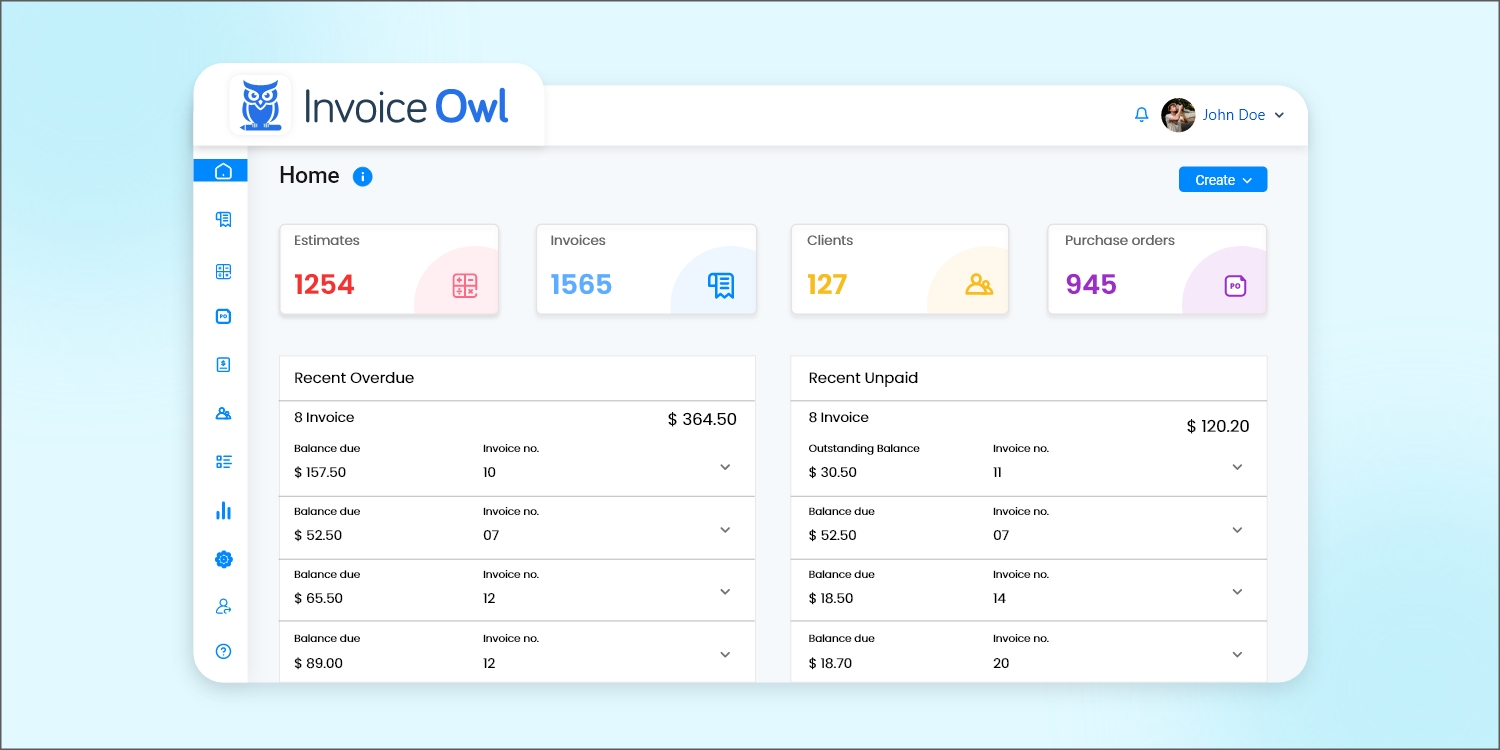
It is here that accounting software like InvoiceOwl steps in. It allows for generating professional estimates, invoicing, storing customer data, and more. It also assists you in staying organized by providing services like e-sign, preparing purchase orders, getting real-time notifications, and generating a report. Moreover, InvoiceOwl assists you in getting paid faster by giving you the option of creating and sending invoices, facilitating online payment, and generating credit memos.
InvoiceOwl helps you automate your estimates and invoices tasks in just a minute, eliminating manual data entry and reducing errors.
Step 2: Set up your company account
You can set up your account with InvoiceOwl in a few easy steps. Fill out relevant details like company name, address, website URL, etc.
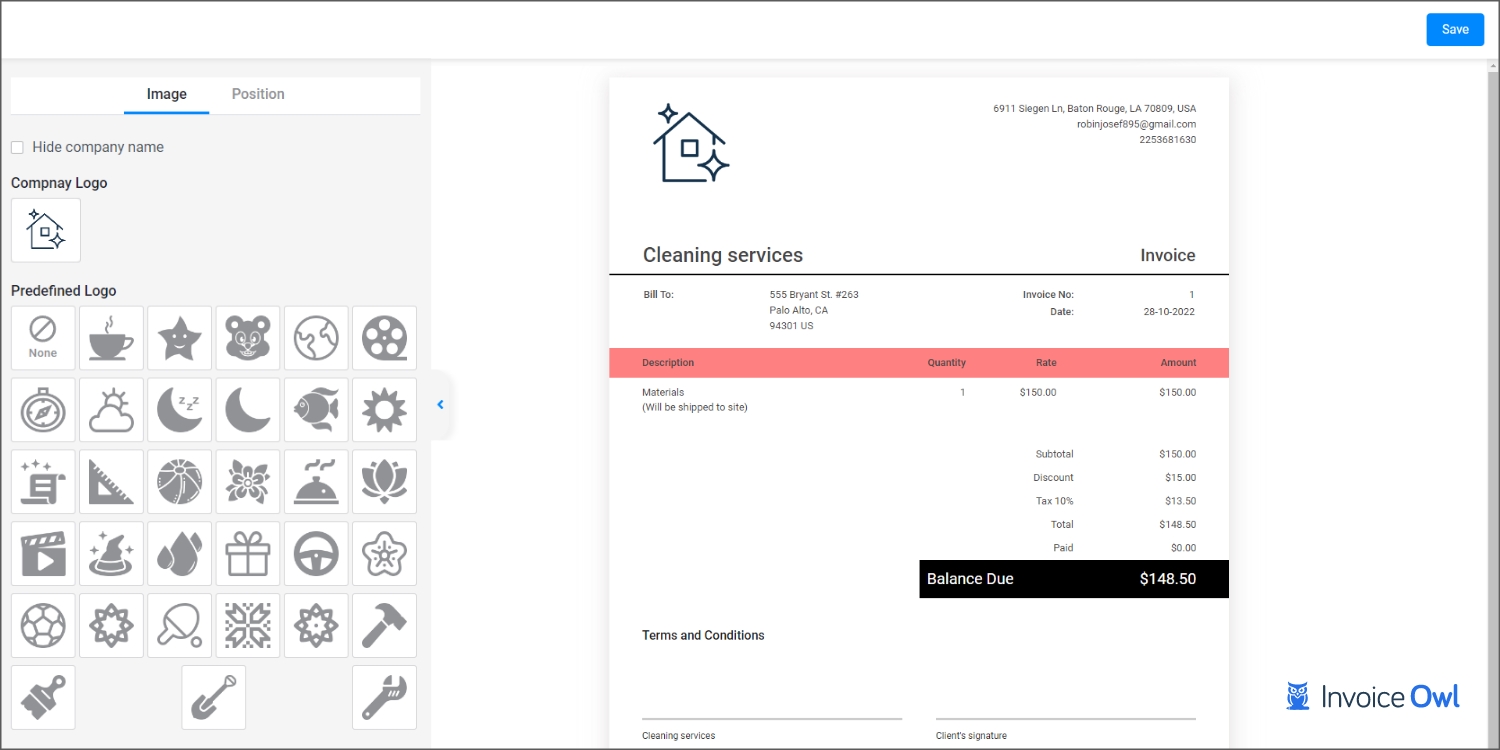
Choose the industry your business belongs to from the drop-down menu. Once you have entered the industry name, InvoiceOwl creates a sample estimate for you. It allows you to personalize your document according to your company preferences. You can add your logo, registered trademarks, watermark, and color combination and format it as you like.
Step 3: Design an estimate in minutes
InvoiceOwl gives you the option of personalizing every element from start to finish. You can create estimates in six easy steps.
Upload Your Logo
Upload your company logo or choose from the predefined logos to add brand identity to your estimates.
Choose a Template
InvoiceOwl provides you with various templates to format your estimate according to your business needs.
Add Business Information
Enter any additional information about your business, such as contact details, license numbers, or service areas.
Select Color Combination
Choose the color combination of your estimate to match your brand guidelines and create a professional appearance.
Customize Banner and Watermark
Pick a banner, leave the backdrop blank, or add your watermark to protect your documents and enhance branding.
Save Your Design
Save your design and move forward to creating your estimate with all your custom settings.
Step 4: Fill in the tax information
For creating an accurate estimate, you need to mention whether your services are taxable or not. If yes, what is the tax percentage levied on those services, and whether the tax is inclusive or exclusive?
Step 5: Send the estimates to your customers
Now that you have created a fully personalized estimate, you can send it to your customer directly. One of the biggest advantages of using InvoiceOwl is that you can send the created estimate to your customer straight away without having to save it anywhere. This feature helps you save both time and storage! If your customer accepts your estimate, it is better to convert the estimate into an invoice rather than create an invoice from scratch. Here is how you can convert an estimate into an invoice:
Converting Your Approved Estimate to an Invoice
Once your customer accepts the estimate, follow these simple steps to convert it into an invoice:
Step 1: Go to estimates
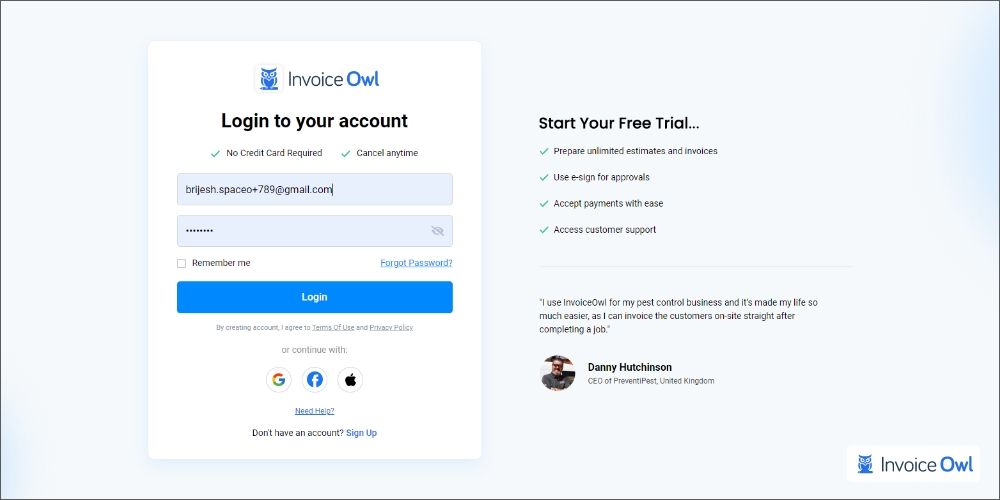
As iterated earlier, InvoiceOwl helps you store customers' data. Once you log into your account, choose the 'Estimates' option from the drop-down menu on the left side of the page. Once you click on 'Estimates,' you will see a table comprising every estimate, the ones with pending status, the accepted ones, and even the rejected ones. Go to the 'Approved' segment to find the accepted estimate. Another option is to utilize the 'Search' feature to find your desired estimate.
Step 2: Convert the estimate into an invoice in a single click
Once you have gained access to the desired estimate, click the 'More Action' column on the right side of the page. It will lead to another drop-down list containing options like 'Generate Invoice,' 'Duplicate,' 'View and Print PDF,' and 'Delete.'
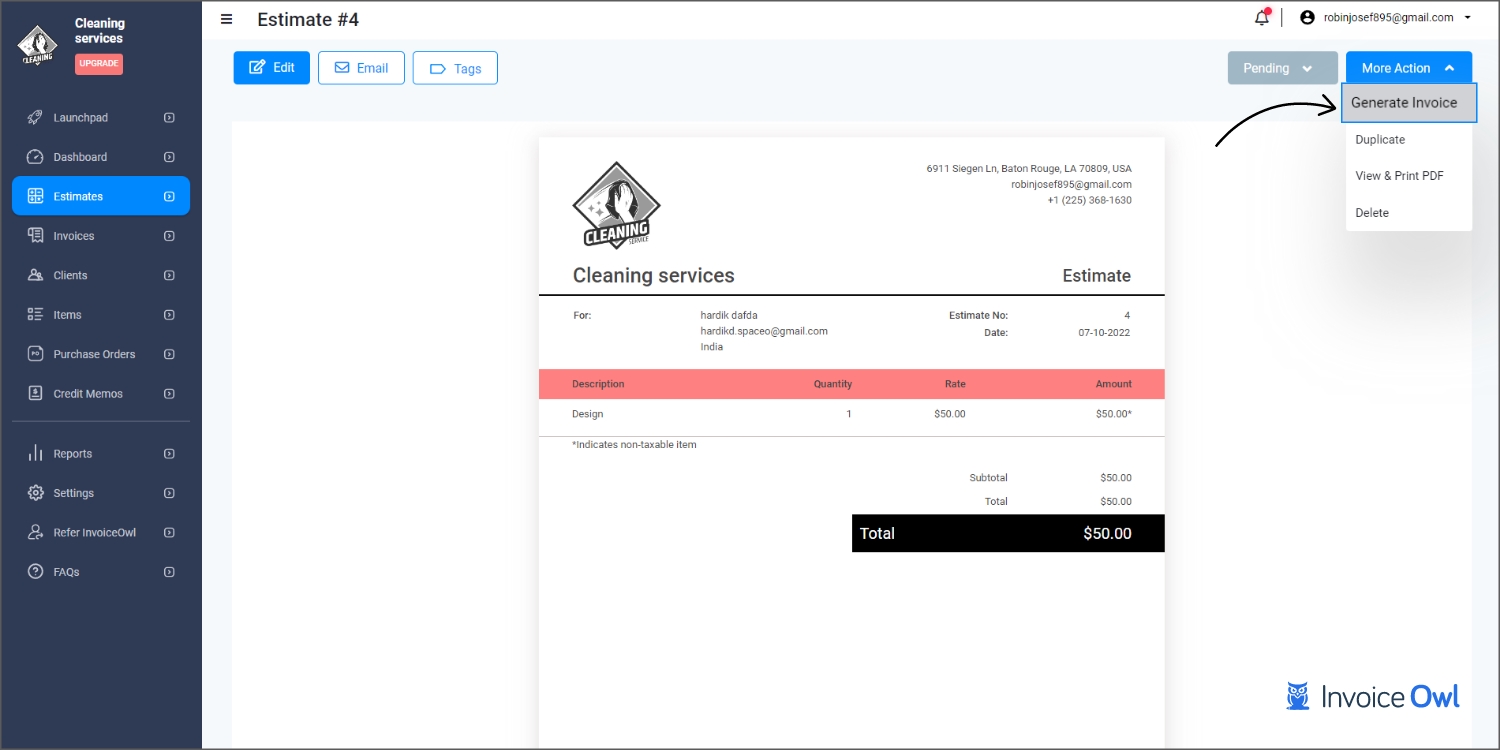
Click on the 'Generate Invoice' option to proceed further. Once you click, a dialogue box will pop up asking whether you want to convert the estimate into an invoice. Select 'Yes' to turn your estimate into an invoice.
When you convert an estimate to an invoice, all the customer information, line items, pricing, and tax details are automatically transferred. This eliminates manual data entry and reduces the risk of errors.
Step 3: Send the invoice to the client
Once you generate the invoice, you can send it to the client immediately by choosing 'Email' as seen on the page.
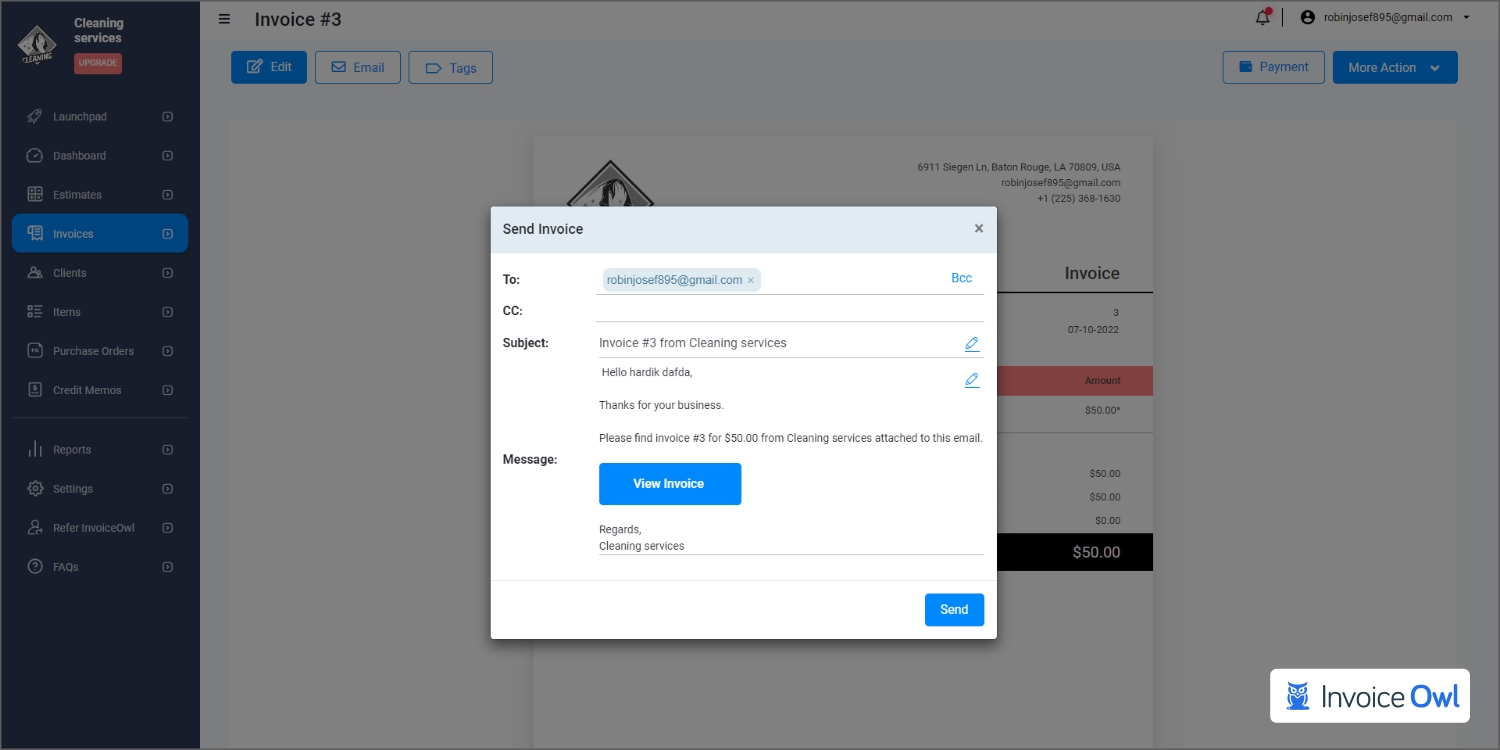
Enter the customer name, email ID, subject line, message, and other relevant information before clicking 'Send.' Click 'Send' to mail the invoice to your customer in no time!
Things to Include in Estimates & Invoices
It is essential to include some pertinent elements while creating estimates and invoices. Without these components, your estimate or invoice may seem unprofessional and incomplete.
Adding a unique identification number helps you track estimates and invoices, making it easier to reference specific documents during customer conversations and for accounting purposes.
Conclusion
Generating an accurate and expert-level invoice and estimate can help you boost sales. It can help you convert potential customers into a real customer base. To create an accurate estimate, you need to indulge in precise pricing. You can create expert–level estimates using invoicing software. It helps you create invoices and estimates, convert estimates into invoices, keep a tab on open estimates, tracks estimate status-accepted or pending status, maintain progressive billing, and more. Therefore, using estimate and invoice software to generate professional estimates and convert them to invoices can help you save time and energy. It also helps you gain support by building a loyal customer base and converting prospects into customers.
Ready to Streamline Your Invoicing Process?
Stop wasting time on manual data entry. Convert estimates to invoices with a single click using InvoiceOwl and get paid faster.
Start Your FREE TrialFrequently Asked Questions
No, an invoice and an estimate are two different things. An estimate can be defined as a rough guess given to the customer to give them an idea of how much the goods or services would cost. It is issued to seal the deal. An invoice is issued after the customer agrees to strike a deal with the business. It is like a bill that requests payment for services rendered.
Yes, using our tutorial mentioned above, you can easily convert a quote or estimate into a bill or invoice using InvoiceOwl. Simply navigate to your approved estimates, click on 'More Action,' and select 'Generate Invoice' to convert it with a single click.
The original estimate remains in your system and is marked as 'Converted' or 'Invoiced.' This allows you to maintain a complete record of your customer interactions and track the progression from estimate to invoice to payment.
Yes, after converting an estimate to an invoice, you can still edit any details before sending it to the customer. This allows you to make last-minute adjustments or add any additional information specific to the invoice.
Converting estimates to invoices eliminates the need to manually re-enter customer information, line items, pricing, and tax details. This reduces data entry errors, saves time, and ensures consistency between what was quoted and what is being billed.
Related Resources

How to Bid For Landscaping Jobs
Learn how to write a receipt with key elements, templates, and digital solutions for proper formatting and best practices in business record-keeping.
Read more
5 Best Pest Control Software for 2026
Grow Your pest control business with pest control software that makes it easy to manage the estimating, invoicing, & payment process you need for your clients.
Read more
12 Best Snow Removal Business Software to Consider This Season
Snow removal business software helps organize operations, estimate costs, invoice, and receive payments all in one place to impress customers.
Read more
9 Best Invoice Simple Alternatives to Make Invoicing & Estimating Agile
Get a software that lets you explore without demanding confidential information on the first interaction. With InvoiceOwl, you would get 14-days free trial to know how the software works. So let's get started.
Read more
6 Best Joist Alternatives for Quick Estimating and Invoicing
Joist is not the only option for estimating and invoicing. Try this 6 best Joist alternative software for streamlined estimating and invoicing process.
Read more
InvoiceOwl vs FreshBooks
Choose the right estimating and invoicing software between InvoiceOwl vs Freshbooks for creating customized estimates and invoices on your own.
Read more
InvoiceOwl vs HoneyBook
Compare InvoiceOwl and HoneyBooks, two top invoicing and estimate software options. Find the best solution for your business needs in this detailed comparison.
Read more
InvoiceOwl vs Invoice2go
Compare Invoice2go with affordable estimating and invoicing software that you can count on. Get an in-depth comparison between InvoiceOwl and Invoice2go.
Read moreHow to Bid For Landscaping Jobs
Learn how to write a receipt with key elements, templates, and digital solutions for proper formatting and best practices in business record-keeping.
Read more5 Best Pest Control Software for 2026
Grow Your pest control business with pest control software that makes it easy to manage the estimating, invoicing, & payment process you need for your clients.
Read more12 Best Snow Removal Business Software to Consider This Season
Snow removal business software helps organize operations, estimate costs, invoice, and receive payments all in one place to impress customers.
Read more9 Best Invoice Simple Alternatives to Make Invoicing & Estimating Agile
Get a software that lets you explore without demanding confidential information on the first interaction. With InvoiceOwl, you would get 14-days free trial to know how the software works. So let's get started.
Read more6 Best Joist Alternatives for Quick Estimating and Invoicing
Joist is not the only option for estimating and invoicing. Try this 6 best Joist alternative software for streamlined estimating and invoicing process.
Read moreInvoiceOwl vs FreshBooks
Choose the right estimating and invoicing software between InvoiceOwl vs Freshbooks for creating customized estimates and invoices on your own.
Read moreInvoiceOwl vs HoneyBook
Compare InvoiceOwl and HoneyBooks, two top invoicing and estimate software options. Find the best solution for your business needs in this detailed comparison.
Read moreInvoiceOwl vs Invoice2go
Compare Invoice2go with affordable estimating and invoicing software that you can count on. Get an in-depth comparison between InvoiceOwl and Invoice2go.
Read moreHow to Bid For Landscaping Jobs
Learn how to write a receipt with key elements, templates, and digital solutions for proper formatting and best practices in business record-keeping.
Read more5 Best Pest Control Software for 2026
Grow Your pest control business with pest control software that makes it easy to manage the estimating, invoicing, & payment process you need for your clients.
Read more12 Best Snow Removal Business Software to Consider This Season
Snow removal business software helps organize operations, estimate costs, invoice, and receive payments all in one place to impress customers.
Read more9 Best Invoice Simple Alternatives to Make Invoicing & Estimating Agile
Get a software that lets you explore without demanding confidential information on the first interaction. With InvoiceOwl, you would get 14-days free trial to know how the software works. So let's get started.
Read more6 Best Joist Alternatives for Quick Estimating and Invoicing
Joist is not the only option for estimating and invoicing. Try this 6 best Joist alternative software for streamlined estimating and invoicing process.
Read moreInvoiceOwl vs FreshBooks
Choose the right estimating and invoicing software between InvoiceOwl vs Freshbooks for creating customized estimates and invoices on your own.
Read moreInvoiceOwl vs HoneyBook
Compare InvoiceOwl and HoneyBooks, two top invoicing and estimate software options. Find the best solution for your business needs in this detailed comparison.
Read moreInvoiceOwl vs Invoice2go
Compare Invoice2go with affordable estimating and invoicing software that you can count on. Get an in-depth comparison between InvoiceOwl and Invoice2go.
Read more